Product images
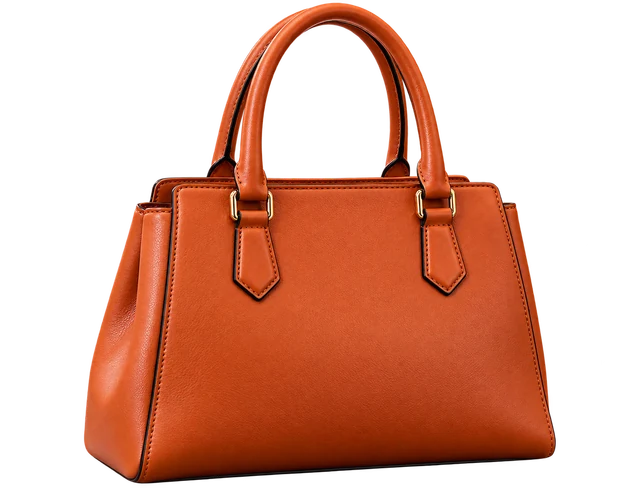
Remove the photographed background to create product assets for catalogs, product pages and promotional layouts. Add a white background in another design tool if needed.
Upload images in batches to remove backgrounds, restore photos and enhance images at the 4K output tier.
Upload multiple images and create transparent PNGs. For product photos, portraits and design assets.

No image selected
Review batch results one image at a time
Processing. Stay on this page to keep submitting the remaining images.
Click the upload area or drop JPG, JPEG, PNG or WebP images onto it. Add images in stages; duplicates are skipped. Remove individual pending images or clear the input queue.
Choose 1K, 2K or 4K, then start processing. Images are processed one at a time; compare originals and results above.
Download individual results or select several for a ZIP. Without a selection, the download includes all results in the current filter.
Import a group of images together, review the results and download them in one place. Transparent PNGs can be placed onto new backgrounds in other tools.
Remove the photographed background to create product assets for catalogs, product pages and promotional layouts. Add a white background in another design tool if needed.
Create transparent portrait assets for composites, posters and social media designs. Check hair and clothing edges afterward.
Use isolated products, people or other subjects in presentations, posters and designs. This page displays transparent areas with a checkerboard.
| Input formats | Static JPG, JPEG, PNG and WebP images |
|---|---|
| File size per image | 25 MB; images over 10 MB are compressed automatically when submitted. 10 MB is not the upload limit |
| Batch size | Up to 30 results. New batches are limited by remaining capacity and available credits |
| Output format and resolution | Transparent PNG; 1K, 2K or 4K. Actual dimensions depend on the result |
| Downloads | Individual downloads or a ZIP of selected results or results in the current filter |
Results are kept for 3 days. Download before expiry.
You can delete results and associated original previews from the list. Expired files are cleaned up periodically. Images pass through our server and third-party processing services. Read about data use and retention in our Privacy policy.
Yes. Upload multiple images and start processing; results appear in one list. Submission is limited by available credits and result capacity.
Some viewers display transparency as a solid color. Open the image in a design tool that supports transparency, or place it on a colored background to check.
This tool produces a transparent background and does not change background colors. Add a white background in another tool.
Stay on this page until the batch finishes. Navigating away, refreshing or closing the page may discard images not yet submitted. Submitted tasks continue in the background.
Within the retention period, processing records can be restored for the current account or browser. If no original is available, the comparison area shows the default product example.
Read the error message and check the format, file size and connection before retrying. Failed or timed-out tasks return credits automatically.